Multi Stream Transport: MST Guide for Broadcast Control Rooms
Managing a bank of monitors on a single workstation gets messy fast, especially when your GPU only offers one or two video outputs. Broadcast engineers and headend managers know this problem well: control rooms, playout suites, and monitoring walls demand multiple screens, but ports, cables, and desk space stay stubbornly limited. Multi stream transport solves this by letting a single DisplayPort connection carry several independent video signals at once.
In this guide, I’ll walk through how multi stream transport actually works, the two ways to build it (hub versus daisy-chain), the bandwidth ceilings that limit how many displays you can run, and which operating systems and graphics cards actually support it. I’ll also connect this display technology back to real broadcast and control-room scenarios, since that’s where TVTechInsight’s readers spend most of their working hours. By the end, you’ll know exactly what to check before you buy a hub or spec out a new engineering desk.
Key Takeaways
Multi stream transport multiplexes several video signals over one DisplayPort cable, unlike Single-Stream Transport (SST), which needs a dedicated port per display.
Two architectures exist: hub-based distribution and daisy-chain monitor connections, each suited to different deployment needs.
Bandwidth and display count limits depend on resolution, with 4K setups pushing DisplayPort 1.2 close to its ceiling.
Windows offers full native support, while macOS restricts multi stream transport to mirrored output only.
Control rooms, headend monitoring walls, and NOC dashboards are practical settings where this technology earns its keep.
Table of Contents
- What Is Multi Stream Transport (MST)?
- How Does MST Architecture Work?
- What Are the Bandwidth and Display Limits of MST?
- Which Operating Systems and Hardware Support MST?
- Where Does MST Fit Into Broadcast and Media Workflows?
- The Takeaway
- Frequently Asked Questions
What Is Multi Stream Transport (MST)?
Multi stream transport is a DisplayPort feature that combines multiple video signals into a single data stream so they can travel over one cable to one output port. It works through a process called multiplexing, where the source device splits video into separate digital streams, sends them together down a single DisplayPort cable, and lets the receiving hardware sort them back out. This capability arrived with the DisplayPort 1.2 specification in 2010, and it has carried through every version since, including DisplayPort 2.0. The receiving side of this setup takes one of two forms, either a dedicated MST hub or a chain of daisy-linked monitors, and whichever form it takes, the job is the same: unbundle the combined signal and hand each display its own independent feed. Once that happens, your operating system sees each monitor as a separate screen, capable of showing its own content rather than just mirroring whatever the first display shows. For broadcast engineers working with multi-monitor racks, this means one GPU output can realistically replace what used to require three or four separate video cards or docking stations.
How MST Differs From Single-Stream Transport (SST)
Single-Stream Transport is the traditional model, where every monitor needs its own dedicated output and its own full share of bandwidth. Multi stream transport flips that by letting one port serve several displays at once, though those displays then share the available bandwidth rather than each getting the full allocation. This distinction matters more than it sounds. A video editor running three 4K monitors through SST gets maximum resolution and refresh rate on each screen because nothing is shared, while the same three monitors on MST have to split one pool of bandwidth between them.
That tradeoff explains why SST still wins out in certain scenarios. High-refresh gaming rigs, color grading suites demanding full bandwidth per display, and older hardware without MST support all lean toward SST. For most broadcast workstations and control-room setups, though, the cable savings and port flexibility of MST outweigh the bandwidth tradeoff.
How Does MST Architecture Work?
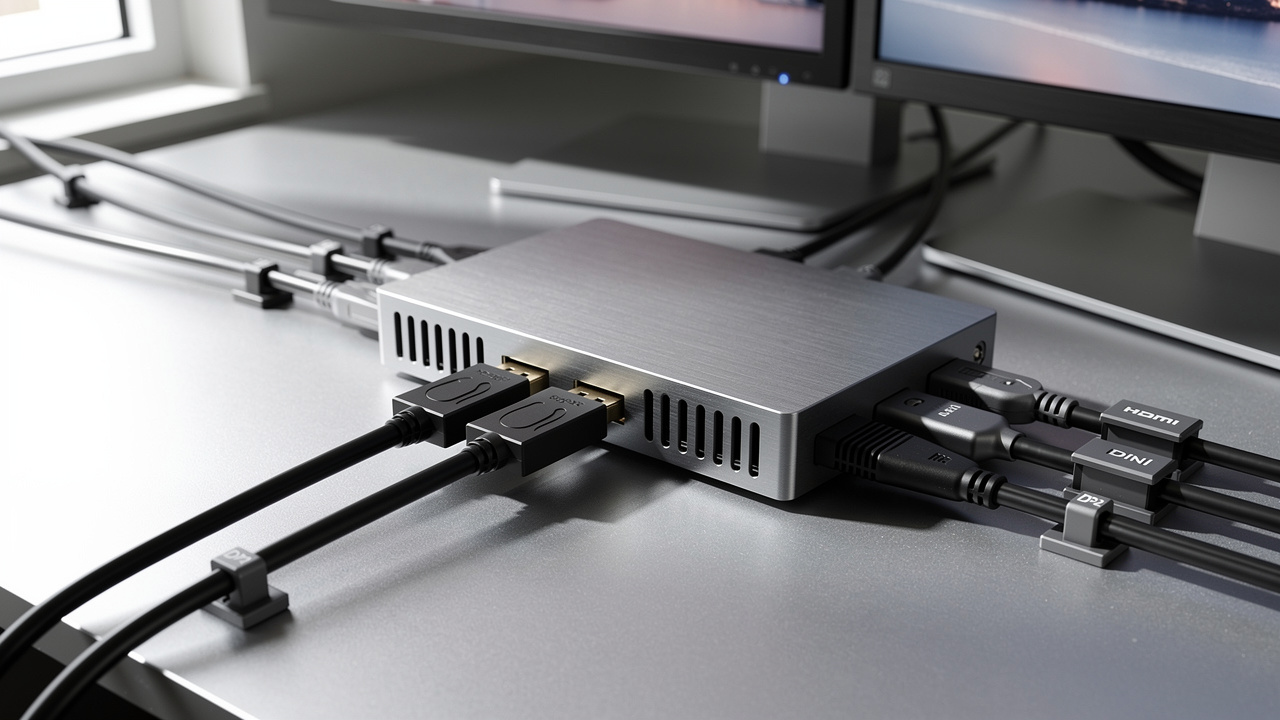
Multi stream transport can be built two distinct ways, and the choice between them shapes how flexible or how minimal your cabling ends up being. In a hub-based setup, a central MST hub takes one DisplayPort input from the source and splits it into multiple outputs, each capable of feeding a different display, and because the hub handles conversion internally, those outputs can mix DisplayPort, HDMI, DVI, or other formats depending on the hub’s build. This architecture lets you connect or disconnect any single display without touching the rest of the setup, which is exactly why it works well in control rooms, digital signage installs, and broadcast facilities that get reconfigured often. The daisy-chain alternative links monitors in series instead, where the first monitor needs both DisplayPort input and output with MST explicitly enabled, each following monitor only needs an input, and the final monitor in line needs no output capability at all. Cable runs between daisy-chained monitors generally stay under three feet to avoid excess slack, and because the configuration depends on monitors that support pass-through, it demands more specific hardware than the hub approach does.
MST Hub vs. Daisy-Chain: Which Fits Your Setup?
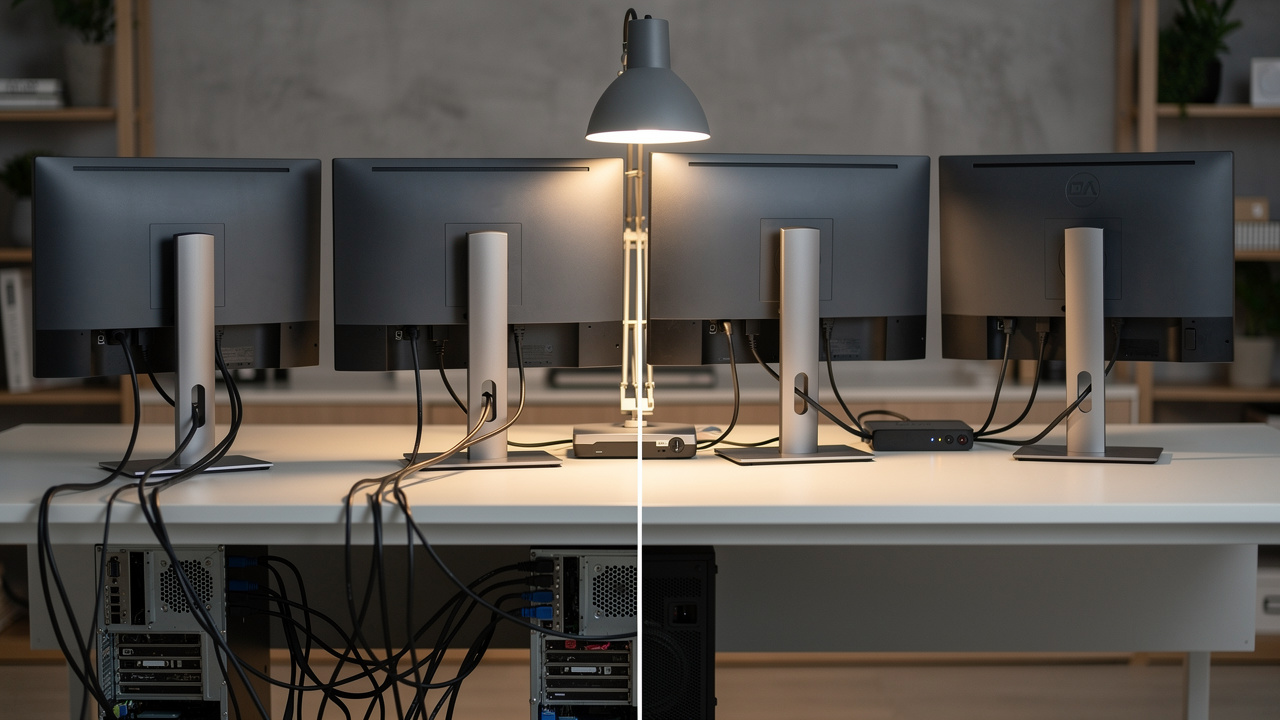
A hub is the better pick for broadcast environments where displays get swapped, added, or pulled offline regularly, since nothing downstream gets disrupted when you touch one connection. Control rooms, headend monitoring walls, and signage installs in lobbies or venues all benefit from that independence, and hubs don’t require your monitors to support daisy-chaining at all, which widens your choice of display hardware considerably.
Daisy-chaining, on the other hand, wins on simplicity and cable count for fixed desks that rarely change, like a permanent engineering workstation with two or three monitors bolted in place. The catch is that every monitor except the last one in the chain needs DisplayPort output alongside input, a requirement that narrows your monitor shopping list and makes retrofitting an existing desk harder than it sounds.
What Are the Bandwidth and Display Limits of MST?
Multi stream transport’s display count depends directly on how much bandwidth your DisplayPort connection has to share across every connected screen. DisplayPort 1.2 offers roughly 21.6 Gbps of total bandwidth, and that number has to stretch across every monitor you plug in, so resolution choice matters enormously. A 1080p display typically eats up about 22% of that bandwidth, while a 4K display can consume 40% or more depending on refresh rate, which means the math runs out quickly once you start adding high-resolution screens.
In practical terms, four 1080p monitors sit comfortably within DisplayPort 1.2’s ceiling, but three or four 4K displays push right up against that limit, and running four often means dropping refresh rate or resolution unless Display Stream Compression is available to shrink the signal before transmission. For headend monitoring walls built around 4K confidence displays, this is the single biggest planning constraint, and it’s worth mapping out your exact resolution and refresh rate needs before buying a hub rather than discovering the shortfall after installation.
Which Operating Systems and Hardware Support MST?
Operating system support determines whether multi stream transport will actually extend your desktop or just mirror it across every connected screen. Windows handles this well across the board, with Windows 7, 8, 8.1, 10, and 11 all offering native multi stream transport support along with built-in display configuration tools that let you set extended, mirrored, or video wall modes without third-party software. macOS takes the opposite approach entirely, treating an MST hub as a single display and defaulting to mirror mode no matter how many monitors you’ve connected, which strips out the core benefit of independent extended screens that most engineers are looking for in the first place. Mac users chasing true multi-display setups generally need Thunderbolt-based alternatives instead, since standard MST hubs won’t extend the desktop the way they do on Windows. Linux sits in between, with support that varies by distribution, kernel version, and graphics driver, so what works cleanly on one setup might need manual configuration or driver updates on another, and it’s worth testing your specific distro before committing to a large-scale deployment.
Hardware Requirements for Reliable MST Setups
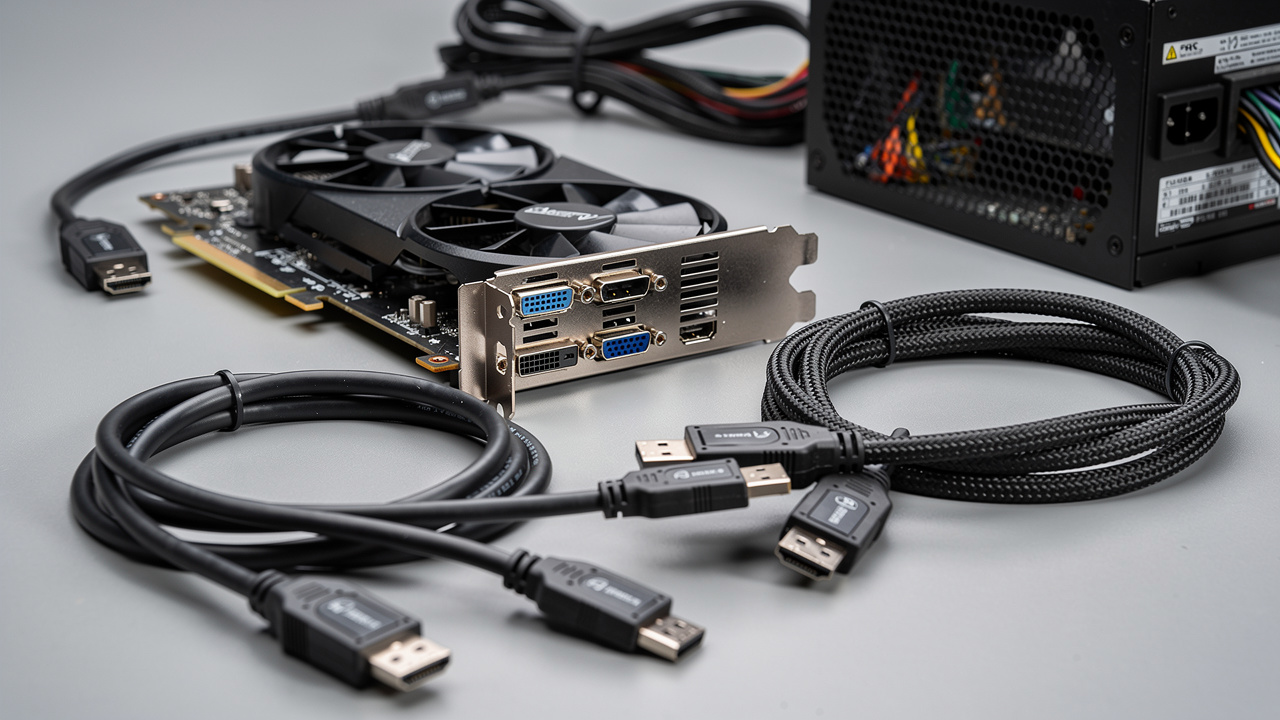
Before buying hardware, confirm your graphics card natively supports DisplayPort 1.2 or newer, a baseline that’s been standard since 4th-generation Intel Core processors and comparable AMD Radeon cards, though it’s still worth checking the exact model rather than assuming. Cables matter too, since certified DisplayPort 1.2 or newer cables are needed for reliable multi stream transport, and USB-C ports with DisplayPort Alt Mode can carry the same signal if your laptop lacks a dedicated DisplayPort output.
A few checks go a long way toward avoiding a failed install:
Confirm the GPU driver version explicitly lists multi stream transport support, since even DisplayPort 1.2-capable cards sometimes need a driver update to unlock the feature properly.
Verify hub power requirements before ordering, because hubs feeding multiple 4K displays often need an external power supply, and running one without it can cause intermittent dropouts.
Check that any adapter cables (DP-to-HDMI, DP-to-DVI) are rated for the resolution and refresh rate you need, since cheaper adapters sometimes cap out well below their advertised specs.
Where Does MST Fit Into Broadcast and Media Workflows?
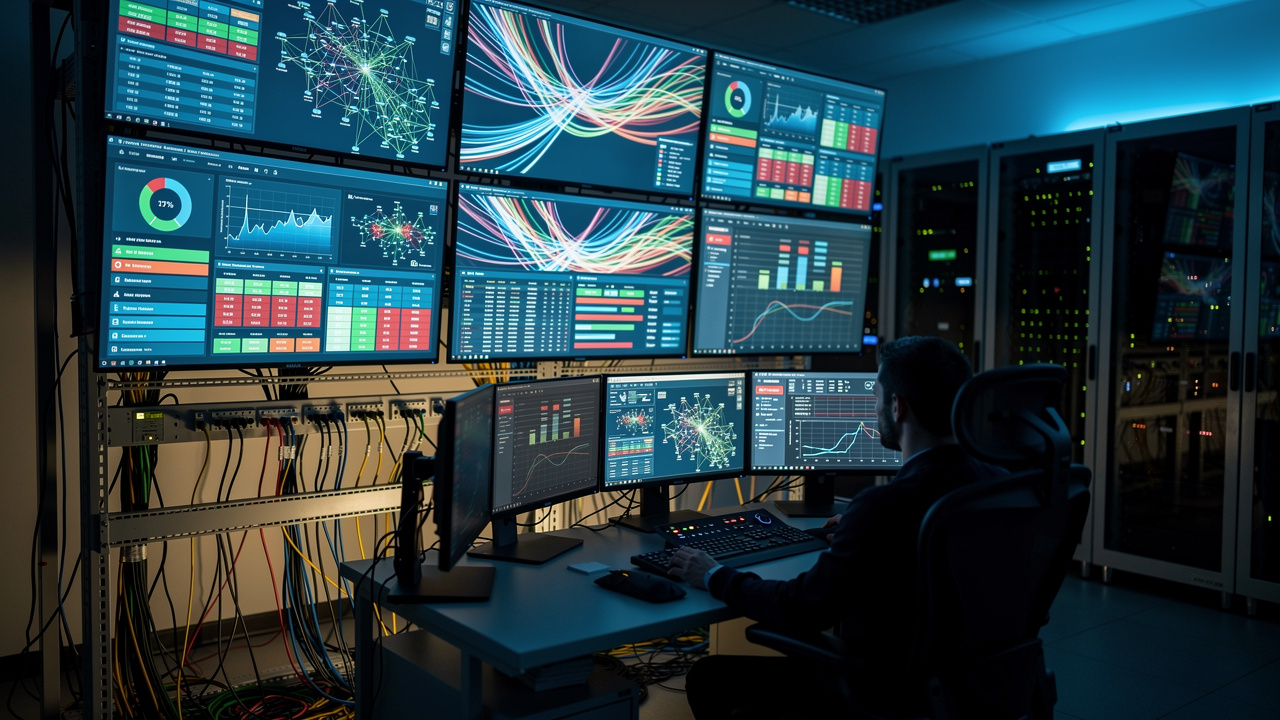
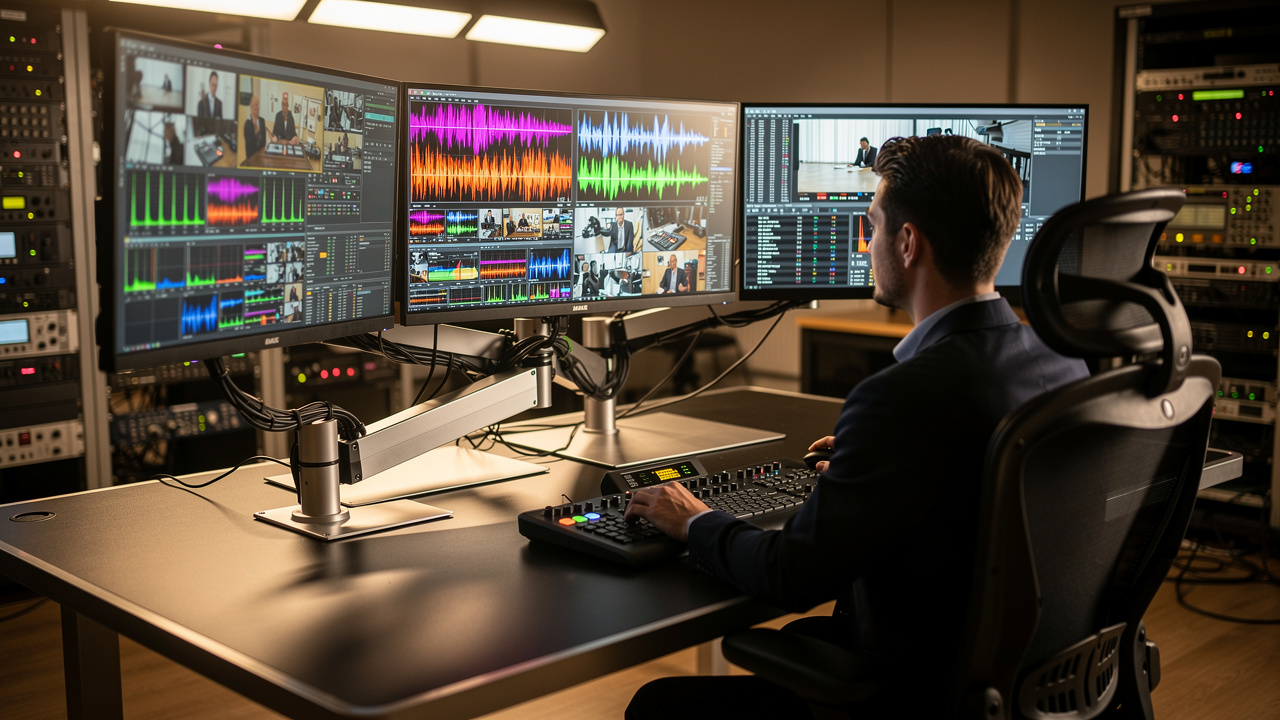
Multi stream transport earns its place in broadcast environments anywhere a single workstation needs to drive several monitors showing different feeds at once. Master control rooms are the clearest example, where an operator might watch program output on one screen, confidence monitoring on another, and routing or automation software on a third, all from a single engineering PC rather than a rack of separate graphics cards. Headend monitoring walls and network operations center (NOC) dashboards benefit the same way, particularly when video wall mode is used to stitch several displays into one continuous view of system status or signal health.
This is the kind of infrastructure decision that sits right alongside the codec and delivery choices this site covers regularly, since picking the right signal distribution method matters just as much as choosing between HEVC and AV1 or planning a DVB-I rollout. Display and monitoring architecture rarely gets the same attention as compression or transport standards, but it directly affects how efficiently an engineering team can watch, diagnose, and respond to problems across a facility. If you’re modernizing a control room or headend alongside a broader broader IP migration, it’s worth treating monitor architecture as part of that same planning conversation rather than an afterthought.
The Takeaway
Multi stream transport earns its keep by replacing a pile of video cables and dedicated outputs with one DisplayPort connection carrying several independent signals. That efficiency comes with real tradeoffs though, since shared bandwidth caps how many high-resolution displays you can realistically run, and operating system support isn’t universal, with macOS in particular limiting the feature to mirrored output only.
Before deploying multi stream transport in any broadcast or control-room setting, confirm your operating system, GPU, and bandwidth needs line up with what you’re trying to build, whether that’s a two-monitor engineering desk or a full headend wall. Getting this right the first time saves a return trip to the hardware vendor. For broader guidance on the infrastructure decisions that sit around setups like this, TVTechInsight covers the adjacent technical ground broadcast and streaming engineers deal with daily.
Frequently Asked Questions
Can MST and SST Run on the Same Graphics Card at Once?
Yes, many modern GPUs support running multi stream transport on one output while another port runs standard Single-Stream Transport simultaneously. Whether this works depends on driver support and how many DisplayPort outputs the card physically has, so it’s worth checking your specific GPU’s documentation before planning a mixed setup.
Does MST Reduce Video Quality or Add Input Lag?
Multi stream transport itself doesn’t degrade video quality or introduce lag on its own. However, because bandwidth gets shared across every connected display, oversubscribing a hub can force lower refresh rates or resolutions, which can feel like a quality drop even though the technology isn’t inherently the cause.
Can I Mix Different Monitor Brands and Resolutions on One MST Hub?
Yes, mixing brands and resolutions works fine as long as each display’s resolution and refresh rate fit within the hub’s total bandwidth budget. The hub doesn’t care about brand, only about the signal requirements each connected monitor demands from the shared bandwidth pool.
Why Does My MST Hub Default to Mirror Mode Instead of Extending My Desktop?
This is standard default behavior the first time a multi stream transport hub connects to a system. Head into Windows display settings, select the multiple displays dropdown, and choose extend these displays instead of duplicate to switch from mirroring to independent extended output.
Is MST Supported Over Thunderbolt or Only Native DisplayPort?
Thunderbolt can carry DisplayPort signals, including multi stream transport, making it a solid alternative where native DisplayPort outputs are limited. This matters especially for Mac users, since Thunderbolt-based multi-display setups often work better than standard MST hubs do on macOS.
Will a Future DisplayPort Version Remove MST’s Bandwidth Limitations?
DisplayPort 2.0 already raises the bandwidth ceiling substantially compared to version 1.2, easing the strain multi-4K and 8K configurations put on earlier standards. As adoption of DisplayPort 2.0 hardware grows, the practical display count and resolution limits engineers deal with today should loosen considerably.